

When creating Custom Metrics from HubSpot CRM Deals using Datasets, you might notice a discrepancy between the values shown in Databox and those in the HubSpot UI. In many cases, the numbers in Databox appear higher than expected.
By default, Datasets in Databox include archived (deleted) deals, which HubSpot does not display in its standard UI. This can result in inflated totals when visualizing Metrics like total deals, deal amount, or deal count.
Open your HubSpot Deals Dataset or create a new one.
Add the “Archived” column from the Deals object.
If Archived equals 1, it means the deal is archived. If it equals 0, it means it's not archived.
Use any of the following approaches to filter out archived deals:
[RECOMMENDED] While editing the dataset, create a filter in the Archived column for "Archived Does Not Equal 1".
OR when building a Custom Metric from the Dataset, add a filter for Archived does not equal 1.
This will ensure that only active deals are included in your final metric.
Save and name your Custom Metric.
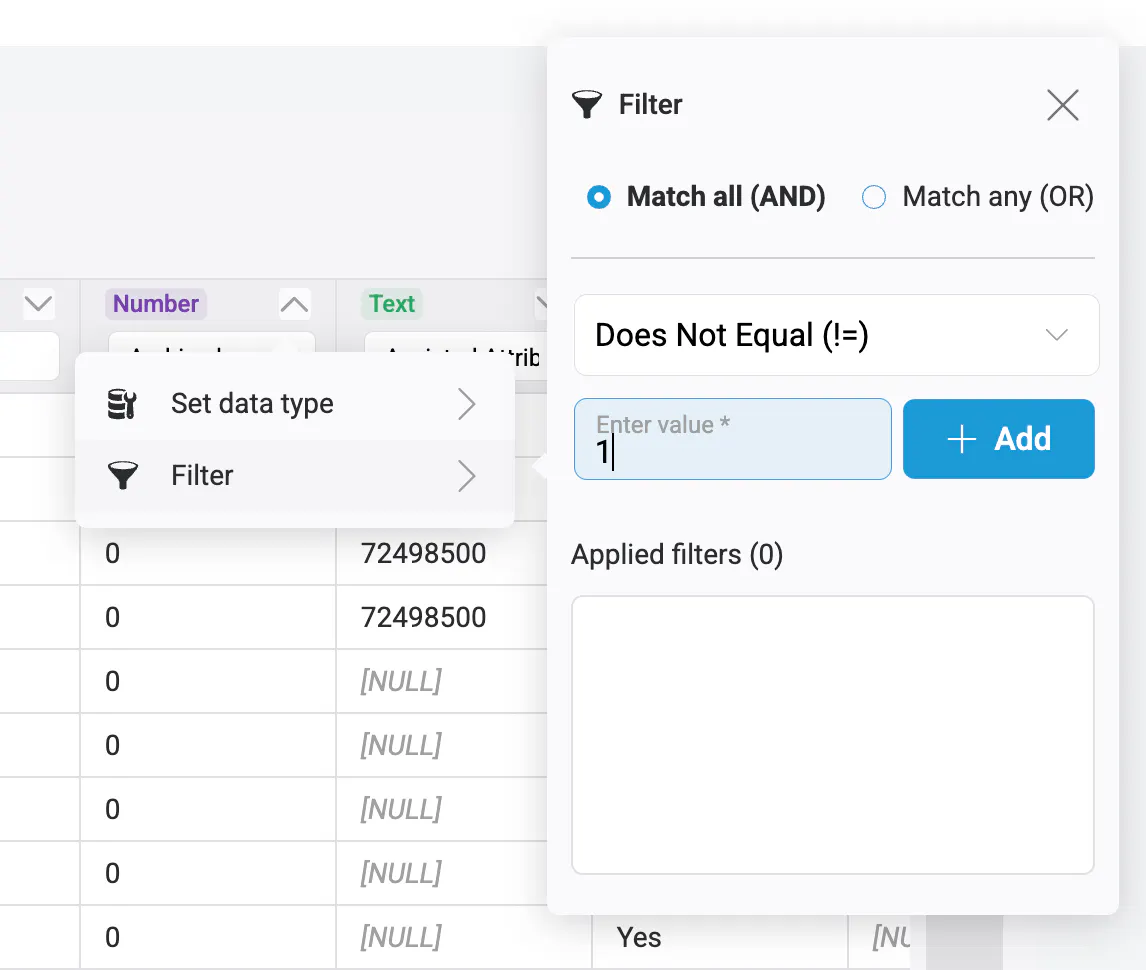
By applying this filter, your Dataset Metrics will align more closely with what's shown in the HubSpot UI and provide a more accurate view of active deals only.
For more on using Datasets in Databox, visit: How to create a Dataset.