


If you want to compare the same Metrics like Impressions, Clicks, and Spent across different Data Sources such as Facebook Ads and Google Ads, you can easily do this using the Data Story visualization.
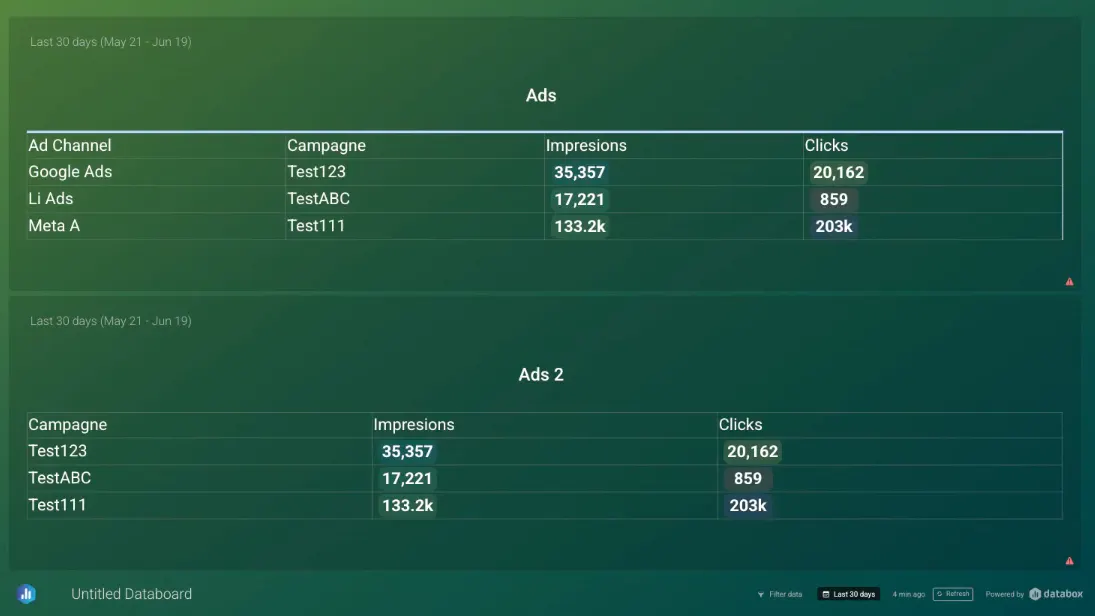
For this post, we’ll use Facebook Ads and Google Ads as the example Data Sources, and display their respective Impressions, Clicks, and Spent Metrics side-by-side.
Add a Data Story to your Databoard
In the top left corner, click on Visualization Types and select the Data Story visualization.
Configure the layout of your table
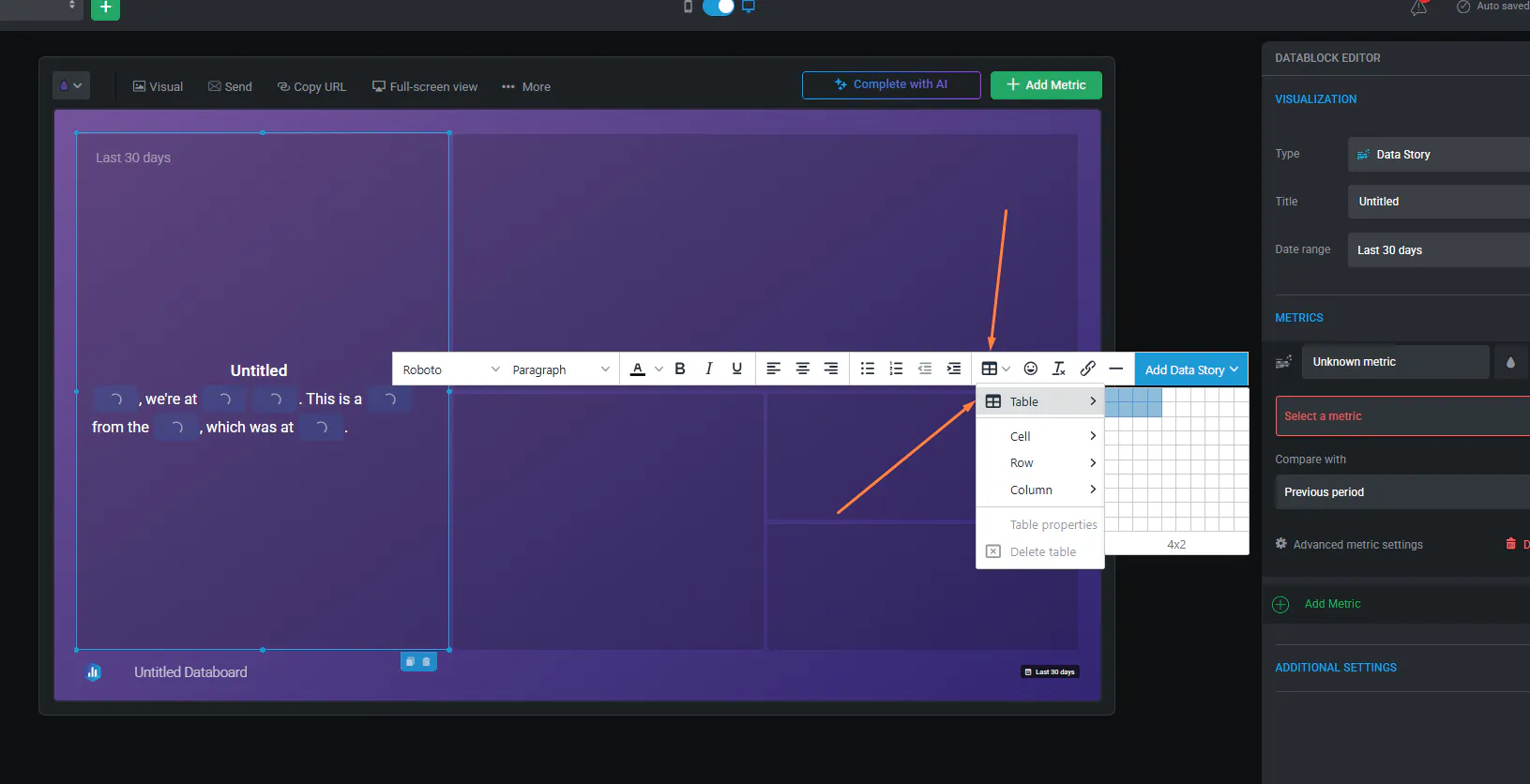
Use the edit bar to set the number of rows and columns you want in the table layout.
You can always add or remove rows and columns later.
Customize the table content
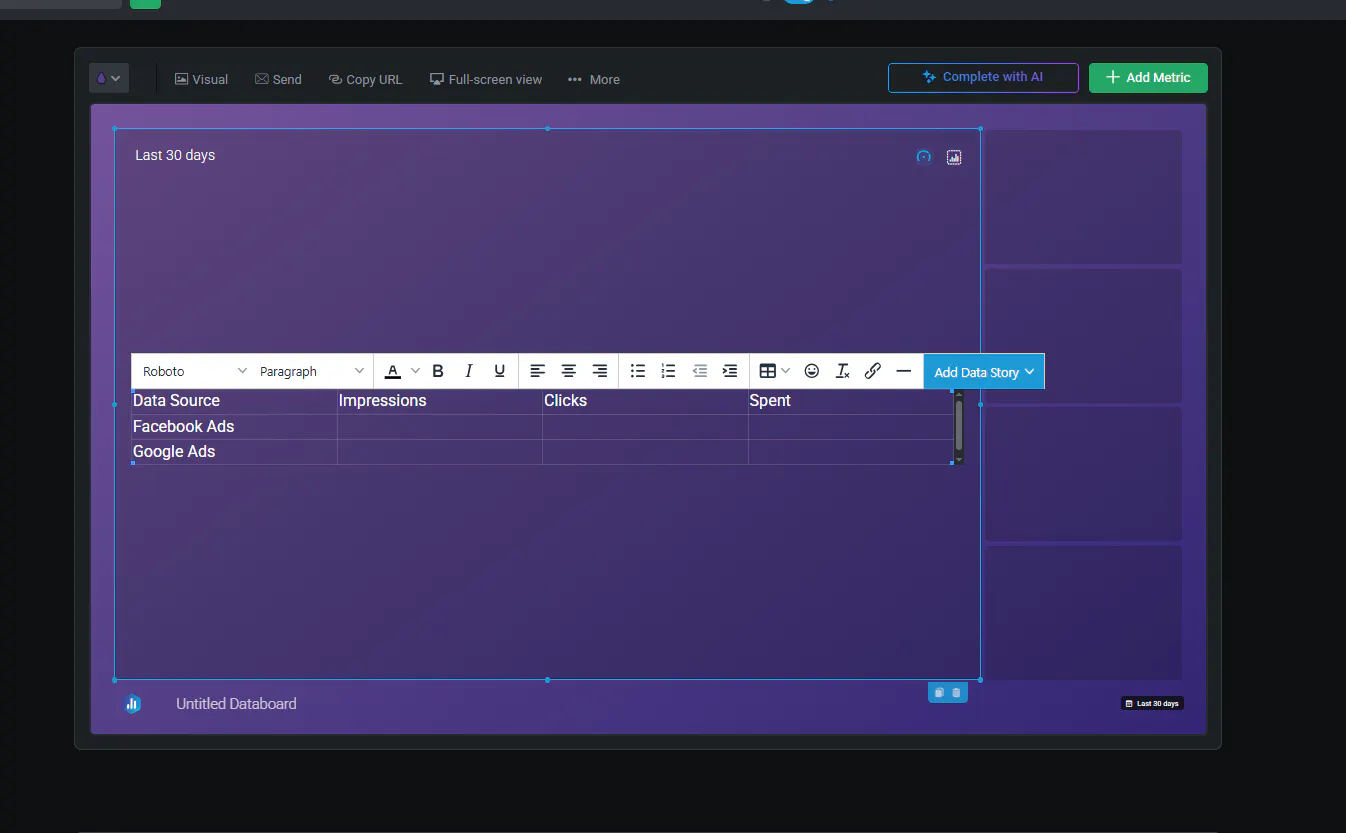
Delete any default text and label your rows and columns to reflect the Metrics and Data Sources you're using.
For example:
Column headers: Facebook Ads, Google Ads
Row labels: Impressions, Clicks, Spent
Add Metrics to the table using Metric Elements
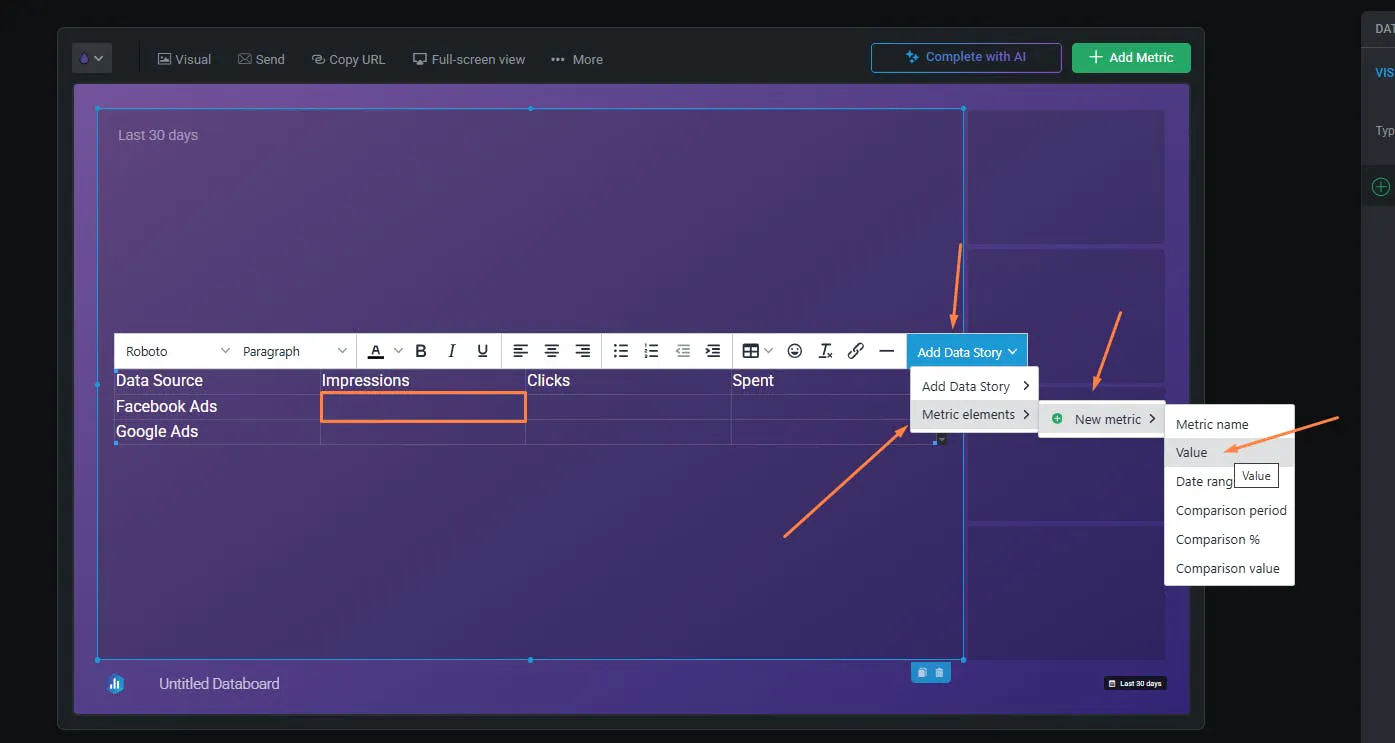
Click on the cell where you want a Metric to appear.
Click Add Data Story > Metric Elements > choose the Metric and Data Source you want.
Once selected, the Metric value will appear in the chosen cell.
Repeat this for each Metric across your table.
Build side-by-side comparisons of the same Metrics across platforms.
Save space by consolidating data into a single view.
Create a more customized reporting layout than standard visualizations offer.
Read more about the Data Story visualization.